 Sergio Carracedo
Sireno: Your AI Assistant for Forms - Write, Translate & Correct Anywhere
Imagine yourself writting a LinkedIn post, you want to correct it, or improve the styling, or even translate it to another language. Now you are coping the text to chatGPT, Gemini, or any other LLM, ask it to do the changes and then you are pasting the improved version back to LinkedIn. This is a common workflow for many of us, but it can be time-consuming and inefficient.
Product definition
I wanted to solve this problem, and make this workflow more seamless and efficient.
The simpliest and most natural solutions was to create a browser extension that can be used on any website, and can interact with any text input field. This way, you can simply select the input you want to improve, and ask the assistant to do the changes without leaving the website.
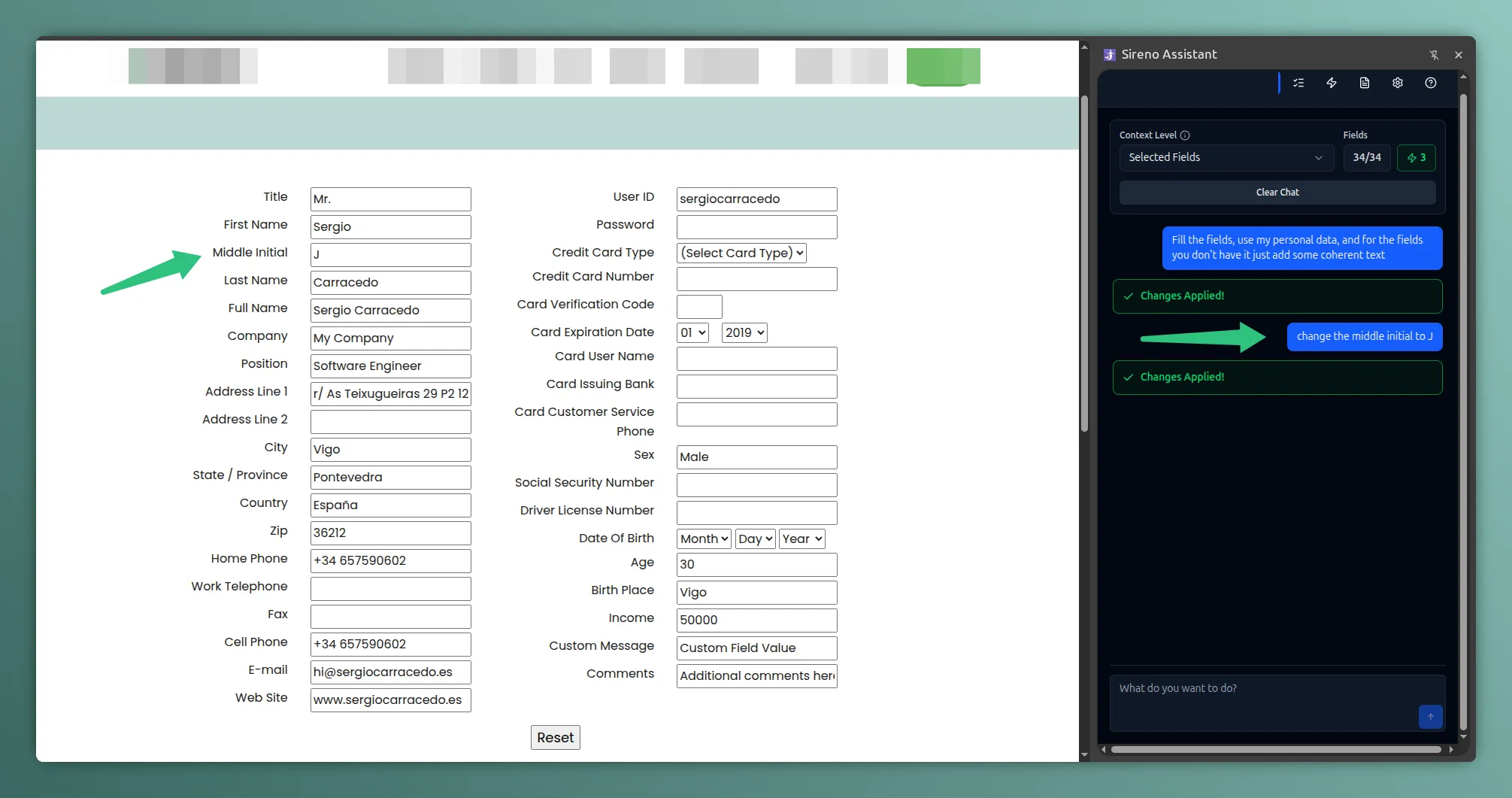
The extension adds a button next to any text input field, and when you click it, pops up a modal with a chat interface where you can interact with the assistant, ask it to correct the style, improve the grammar, translate it to another language, etc. The assistant will then update the field field content acording your instructions.
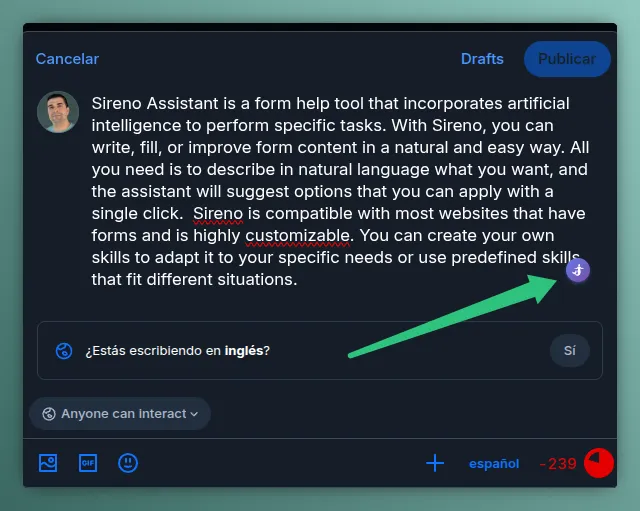
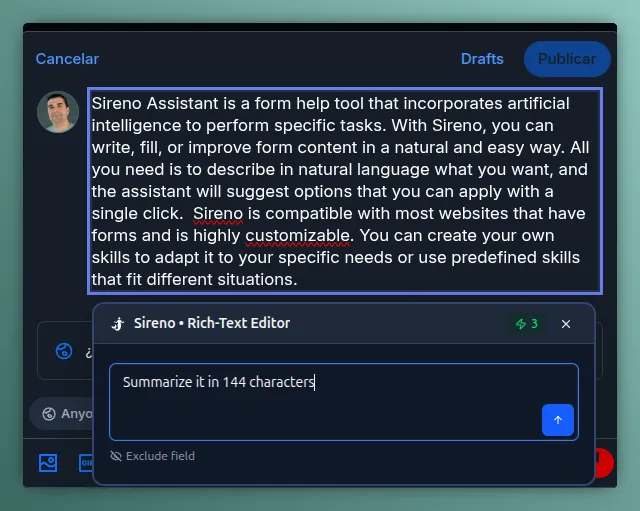
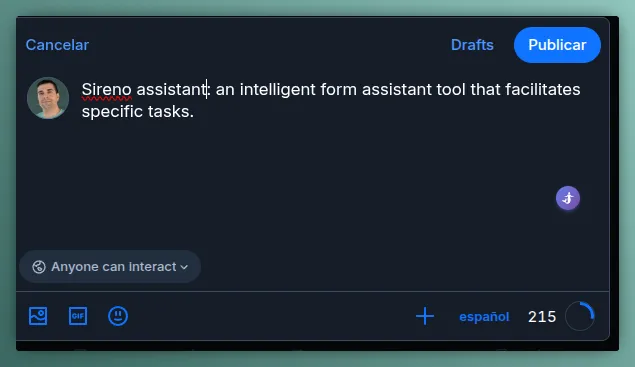
I also wanted to give users the ability to customize the assistant’s behavior and personality depending on the website, for example it is not the same when you want to correct the style in linkedin, than in a more informal website like twitter. Also to provide a assistant more context, for example providing your basic personal data, so the assistant can use it to write more personalized content for you.
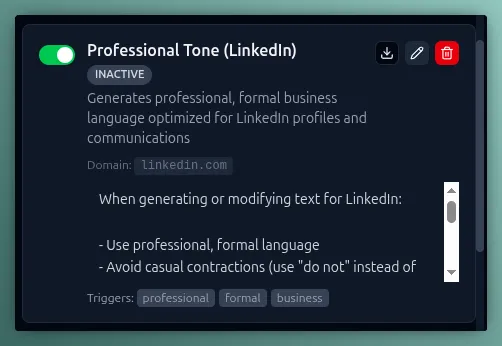
To achieve this, I provide the assistant with skills support. Skills are just small text files, that can be used to provide the assistant with specific instructions, for example a skill for linkedin can include instructions to write in a more formal style, and to include some specific information about the user. Those skills are active only in the websites (domains) you want, so you can have a more formal assistant in linkedin, and a more informal one in twitter or provide it with different information depending on the website.
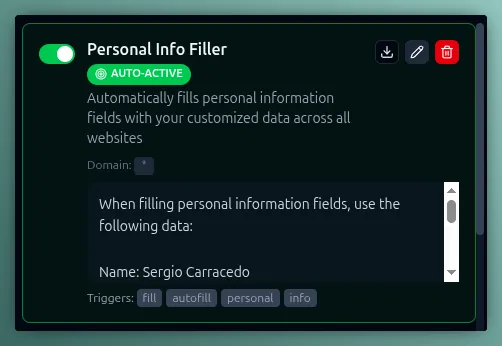
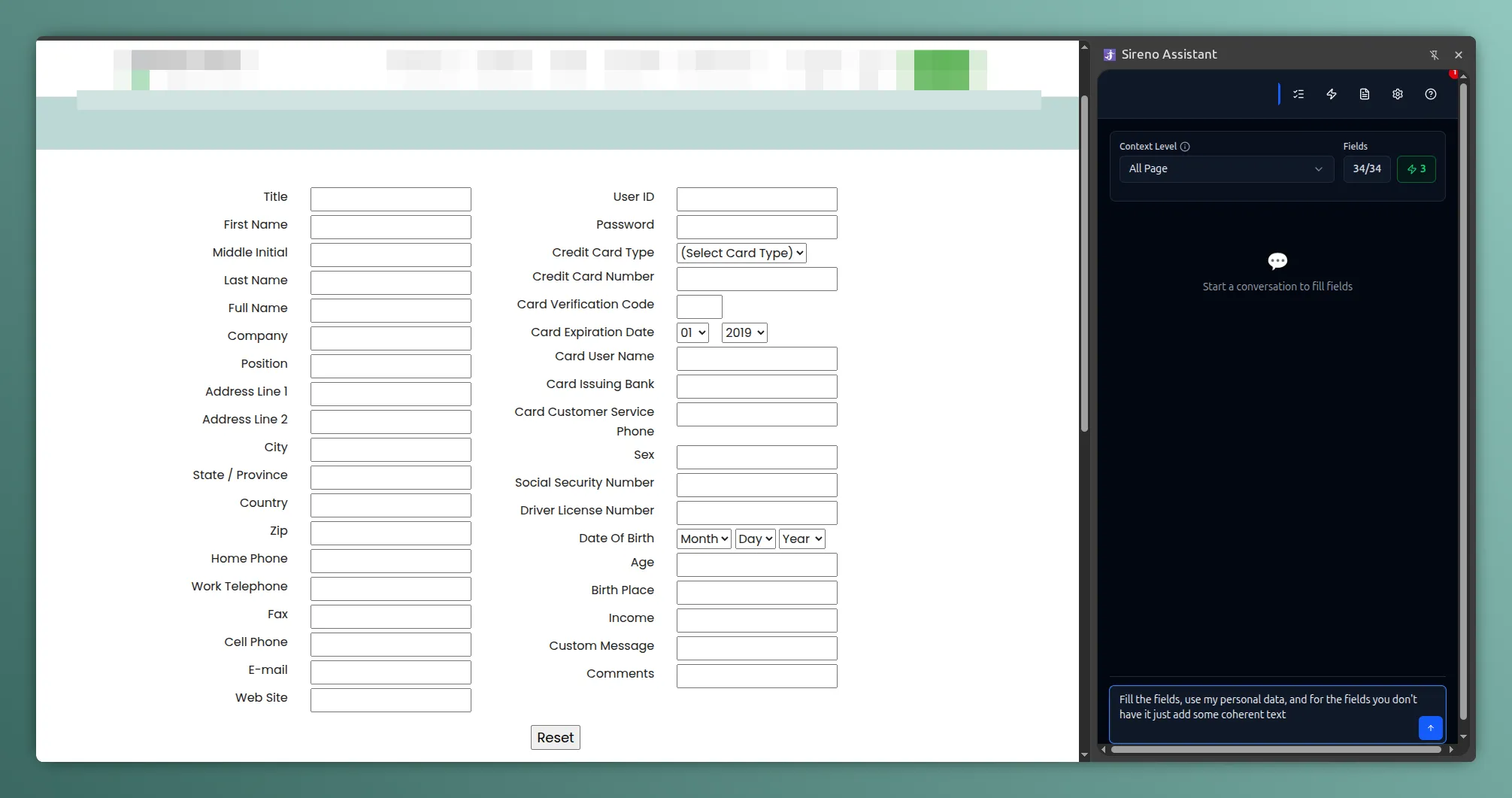
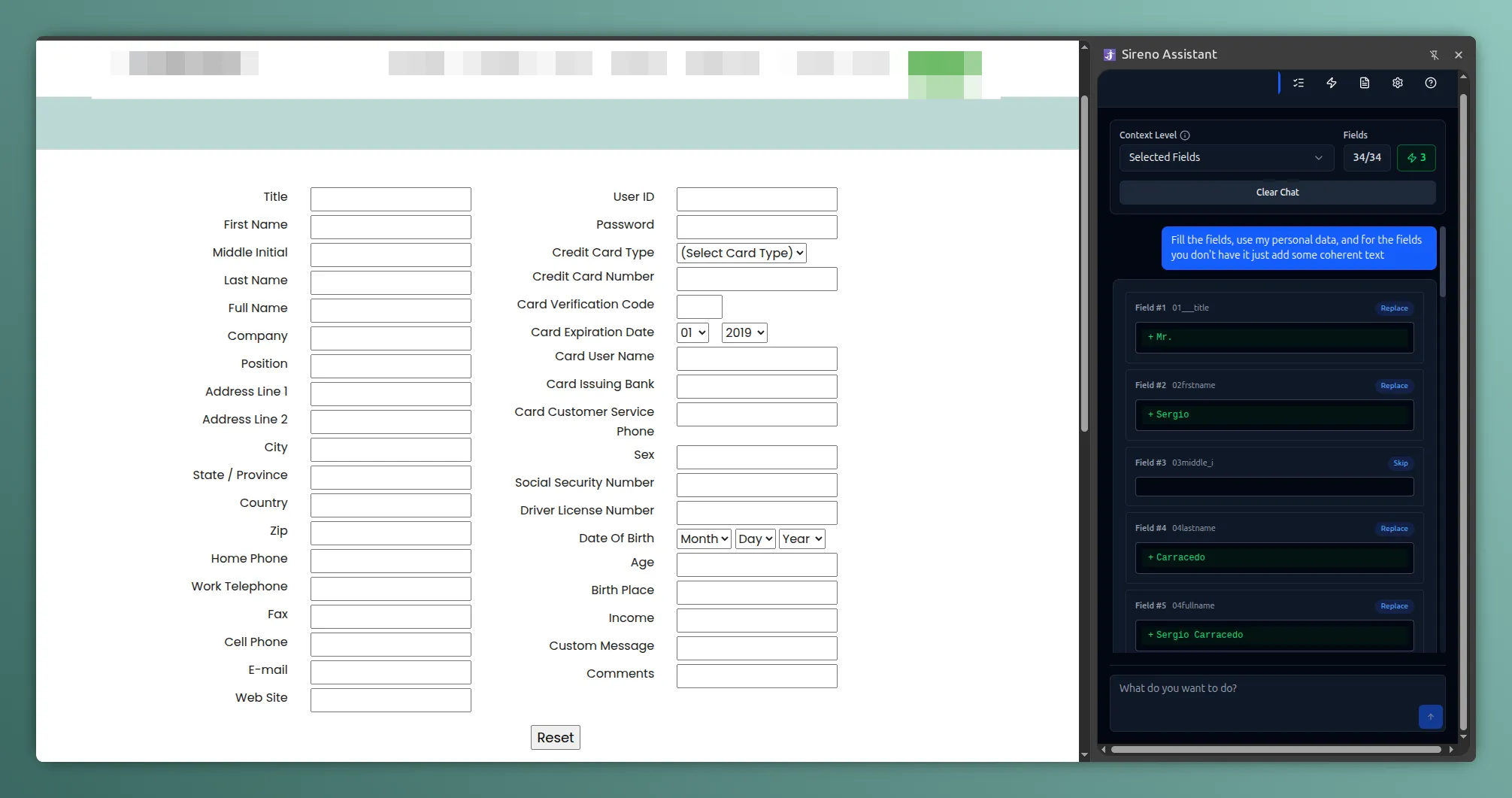
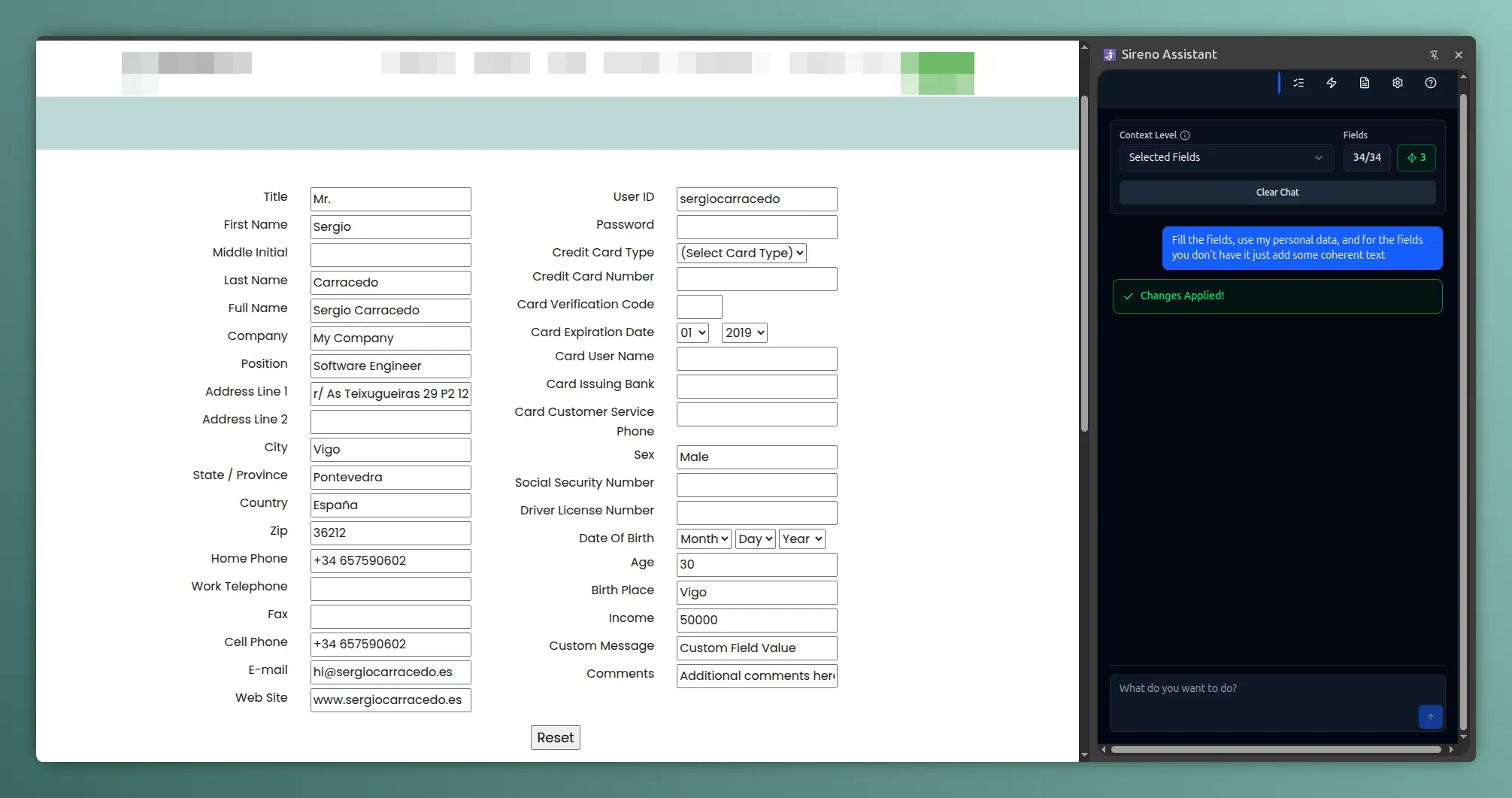
But why just limit it to just one input field? Using the side panel, you can select or deselect which field of the page you want to interact with, and can get the context (you can configure easily the access level) and fill multiple fields at the same time, for example if you are filling a sign up form, using an skill with your personal data, you can fill all the fields of the form at the same time, without having to copy and paste the information multiple times.